
VeriScan allows you to collect tailored information during the check-in process—such as a visitor's car make, reason for visiting, or specific preferences—by using Custom Fields. This data is linked to the scan record and can be used for reporting, compliance, or marketing.
Table of Contents
Subscription Plan Requirements
Custom Fields are an advanced feature available for the following plans:
-
Enterprise
-
ID Authentication
How to Set Up Custom Fields
To begin, navigate to the Custom Fields manager in the VeriScan Cloud Portal:
Settings > Custom Fields (https://veriscancloud.com/Settings/CustomFields)
1. Understand Your Field Types
Before adding fields, choose the data type that best fits your requirements to ensure clean and accurate data entry:
| Field Type | Description |
| String | A simple text box for names, notes, or alphanumeric data. |
| Number | Restricts input to integers only (no decimals). |
| Date | Opens a calendar picker to ensure consistent date formatting. |
| Dropdown | Forces the user to pick exactly one option from a pre-defined list. |
| MultCheck | Allows users to check one or more boxes (ideal for "Interests" or "Agreements"). |
2. Adding Individual Fields
-
Navigate to an existing profile or the default profile.

-
Click the Add Field button.
-
Name the field (e.g., "Vehicle Plate Number").
-
Choose the Field Type from the table above.
-
Turn the Is Active toggle ON.
-
If the field must be filled before the check-in is complete, turn the Is Required toggle ON.
-
Click Create to save.
-
Repeat for each new field you wish to add to the profile.
3. Creating Multiple Profiles
If you need different sets of questions for different visitor types (e.g., "Contractors" vs. "VIPs"):
-
Click the Create New button in the Custom Fields manager.
-
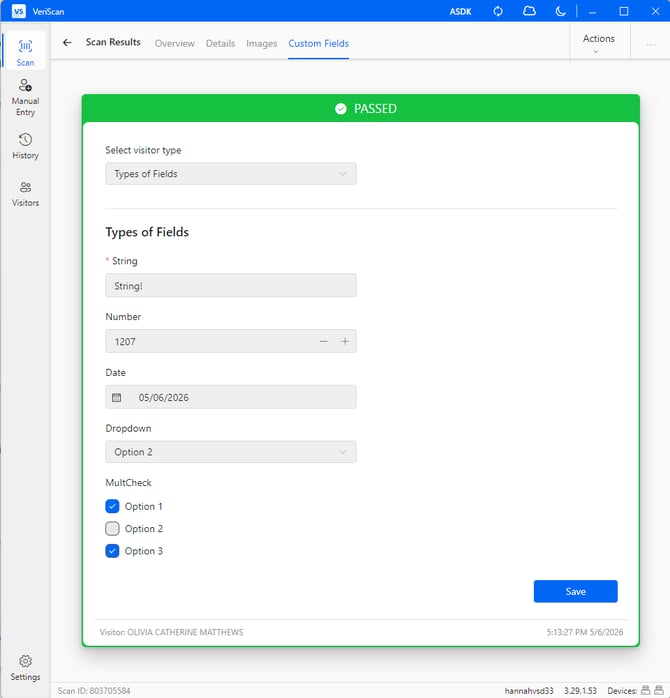
Name the profile: This is the name that will appear in the "Select visitor type" dropdown in the VeriScan for Windows app.
-
Assign Locations: Select which location(s) this specific profile applies to. This allows you to collect tailored data at a warehouse without affecting your retail store's workflow.
-
Copy Existing Logic (Optional): Check "Copy fields from another profile" to use an existing setup as a template.
-
Click Create to save.
Managing & Editing Fields
-
Editing: Click the pencil icon under the Edit column to modify an individual field's settings or name.
-
Deleting: Click the delete icon to remove a field.
-
If data has ever been saved for that field, you will see a confirmation pop-up.
-
You can check a box to "Delete all values from history" in addition to deleting the field. This is unchecked by default to preserve historical data.
-
App Behavior & Syncing
-
Visibility: Only fields toggled as Active will appear in the VeriScan app.
-
Required Fields: Any field marked as Is Required will be displayed with a red asterisk (*).
-
Syncing Settings: To force-sync portal changes to the VeriScan for Windows app immediately:
-
Open the VeriScan for Windows app.
-
Click the Refresh button (circular arrows) in the top bar.
When you scan, if there are Custom Fields being used for your location, this is how they will appear in the VeriScan for Windows app:
-
Required Field Enforcement (Windows Only)
To ensure data integrity, VeriScan for Windows includes built-in enforcement for required fields:
-
Hard Stop: If a field is marked as Required, the app will prevent the operator from scanning a new ID until the mandatory fields are completed. This ensures critical data—like a delivery dock number—is never missed.
Real-World Use Case: Warehouse Logistics
An operator scans a driver's ID and selects a "Disposition" profile:
-
Admitted: The driver is cleared. A list of required fields appears (Truck #, Dock ID). The operator must fill these to move to the next scan.
-
Turned Away: The driver is rejected. Only one simple text field appears: "Reason for Rejection."
App Compatibility
| Feature | Windows | iOS | Android |
| Multiple Profiles | Full Support | First Profile Only | Full Support (v3.15+) |
| Required Enforcement | Full (Hard Stop) | Not Supported | Full Support (v3.15+) |
| Profile Selection | Manual Selection | Auto-defaults to #1 | Full Support (v3.15+) |
Data Access & Integration
-
Webhooks: All custom field data is included in the standard real-time Webhook payload for CRM/ERP integration.
-
CSV Export: All collected custom data is available for download via the VeriScan History page in the portal.
Future Roadmap
We are currently working on:
-
Customizable Selection Prompts: Ability to change "Select visitor type" to a custom string (e.g., "Select Disposition").
-
Mobile Parity: Bringing multiple profile selection and required field enforcement to iOS.
Note: For complex workflows requiring mandatory data entry and location-specific profiles, we strongly recommend using VeriScan for Windows.