
VeriScan accounts are pre-populated with a default device, Demo Device 1, for ease of use. If you only plan to use VeriScan on one computer or handheld device, you can simply edit this device to fit your needs.
However, VeriScan can support a large fleet of devices for businesses scanning at several stations or across multiple locations.
How to Set Up Your Devices
-
Sign in to VeriScanCloud.com
-
Navigate to Access Management > Devices
-
Click Create Login at the top right.
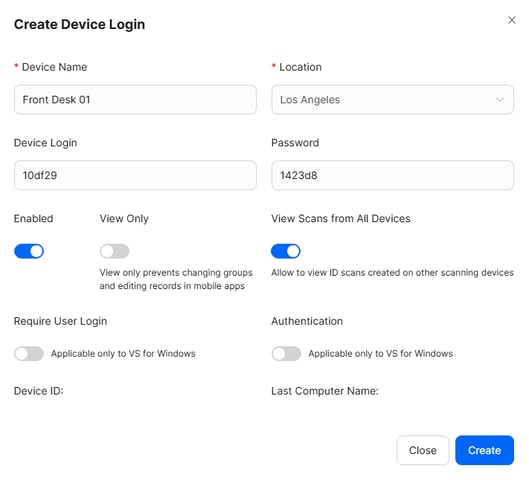
Required Fields & Configuration
In order to save a new device login, you must complete the following mandatory fields:
-
Device Name (Required): This is a free-text field. Use a descriptive name that helps you identify the physical station (e.g., "Front Desk - Left" or "Gate 4 Handheld").
-
Location (Required): Select a location from the dropdown menu. This links the device to a specific facility, ensuring it pulls the correct settings and its data appears in location-specific reports.
-
Enabled: This is toggled ON by default. It must remain ON for the device to allow scanning.
-
View Only: Toggle ON to prevent end users from changing groups or editing visitor records. By default, this is OFF.
-
View Scans from All Devices: Toggle ON if you want this device to see scans performed by other devices on the account. By default, this is ON.
-
Require User Login: Toggle this ON if you need to track exactly which employee was responsible for every scan. Learn more here: How can I track which user scans each visitor?
-
Authentication: If your device is licensed for forensic ID authentication (OCR and UV/IR/Cross-match analysis), you can toggle this ON during this step to enable these features immediately. Learn more here: How do I use Authentication with VeriScan for Windows?
- Kiosk: You will only see this toggle if kiosk mode is enabled for your account. Toggle this ON for any device login you intend to use with a kiosk. Learn more here: How do I configure and customize kiosk mode settings in the VeriScan Cloud portal?
The "One Device" Rule & Hardware Replacement
It is important to note that a single device login can only be used by one device (one computer, tablet, or phone) at a time.
-
Replacing Hardware: If a computer or mobile device needs to be replaced, it is best practice to toggle the Enabled status to OFF for the old device login and create a brand-new device login for the new hardware. This maintains a clean audit trail and prevents licensing conflicts.
-
Filtering Your View: To keep your workspace organized, the Devices page can be filtered to show Enabled devices only, hiding retired or disabled logins.
Saving Your Credentials
Upon opening the "Create Login" window, VeriScan will provide an auto-generated, randomized string for your Device Login and Password.
IMPORTANT: You must click the Create button at the bottom of the window to save your settings. The auto-generated login and password will not work in the VeriScan app until the "Create" action is confirmed in the portal.
Exporting Device Data for Large-Scale Deployment
If you are deploying VeriScan across dozens or hundreds of devices:
-
Export to CSV: At the top of the Devices table, click the Export button to download a CSV file of your entire device list.
-
Accessing License Info: The exported file includes all Device Logins and Passwords, providing a centralized list for distribution to your IT or field teams.
Hardware & Integration Identifiers
When you click the pencil icon to Edit an existing Device Login, you will see two pieces of read-only, display-only information at the bottom of the form:
-
Device ID: This is an auto-generated, fixed unique identifier assigned to that specific Device Login. This ID is permanent and used by integrators to identify hardware sources within webhook payloads.
-
Last Computer Name: This displays the PC name assigned to the last computer that performed a scan using this login. This helps administrators verify which physical workstation is using which license.
Note: A device login should NOT be confused with a VeriScan Cloud user login (typically an email address). A device login functions specifically to license the software and track the activity of that scanning station.