
In This Guide
- How to Send an Applicant a Verification Link
- How to Find an Applicant and Check Their Status
- Branding the Applicant Page (UI Customization)
- Domains and Bundles: What to Give Your Developer
How to Send an Applicant a Verification Link
Sending a verification request takes about a minute and does not need a developer. The person receives a link, opens it on their phone or computer, photographs their ID, and takes a selfie. You see the result in the portal.
Send a Request
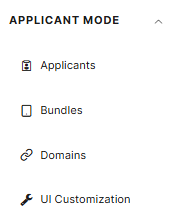
- Click Applicant Mode → Applicants in the left-hand menu.
- Click + Applicant. The Send Online Verification window opens.
- Choose how to send it: SMS/Email Message or Manual Upload.
- Enter the person's Recipient First Name and Recipient Last Name. These are required.
- Enter their email or phone number too if you want them to receive the link by text message.
- (Optional) Add a Reference ID, such as an order, case, or customer number, so you can match this request to your own records later.
- (Optional) Choose any secondary metadata to attach to the applicant session
- (Optional) Choose an applicable callback URL
- (Optional) If you have the VS -> DIVE Integration, select an applicable VS Location.
- (Optional) Choose a Profile if you use more than one. The Profile controls things like pass/fail strictness and message wording.
- Click Send.
Fields marked with a red asterisk are required. If you leave one blank, the portal tells you.
Optional Fields
- Reference ID: Your own tracking number for this request.
- Metadata: Extra labels you can attach to the request, such as department: onboarding. Click + to add more.
- Callback URL: Used only if your developer has set up automatic result delivery. If that is not you, leave it alone.
Tip
If an email does not arrive quickly, add a phone number and resend so the person can get the link by text message instead.
How to Find an Applicant and Check Their Status
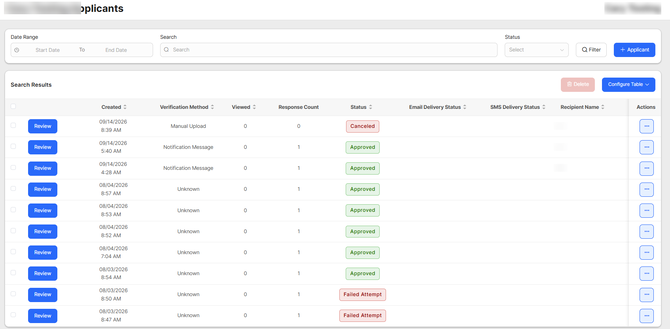
After you send a request, the Applicants page shows whether the person has opened it, how many tries they have made, and whether they passed.
Find Someone
- Click Applicant Mode → Applicants.
- Use Date Range to choose when the request was sent.
- Type a name, email, phone number, or reference ID in Search.
- (Optional) Choose a Status from the dropdown.
- Click Filter.
Understanding the Table
- Created: When you sent the request.
- Verification Method: Email, SMS, or Manual Upload.
- Viewed: Whether the person has opened the link. If this says No for days, they may need a reminder.
- Response Count: How many times they have submitted.
- Status: Where the request stands, such as pending or completed.
- Email Delivery Status and SMS Delivery Status: Whether the message was delivered.
- Reference ID: The tracking number you entered.
- Actions: Per-row options such as viewing the full result or resending.
Show Only the Columns You Care About
- Click Configure Table.
- Tick the columns you want to see.
Delete Requests
- Tick the box next to one or more rows.
- Click the red Delete button.
Branding the Applicant Page (UI Customization)
UI Customization lets you change how the page your applicants see looks and behaves, so it matches your brand. A live preview on the right shows your changes as you make them.
Before You Start
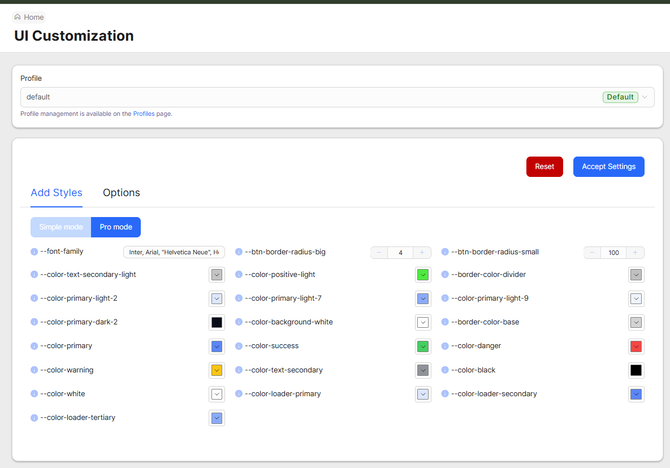
Choose the Profile you want to style from the dropdown at the top. Changes apply to that Profile only.
Change the Look (Add Styles Tab)
- Click Applicant Mode → UI Customization.
- Stay on the Add Styles tab.
- Use Simple mode for the basics: font, main colors, and how rounded the buttons are. Switch to Pro mode only if you want fine control over every color and style.
- Watch the preview on the right update.
- Click Accept Settings to publish your changes, or Reset to go back to the defaults.
Change How It Works (Options Tab)
Click the Options tab to control what applicants can do.
- Language: The language of the applicant page.
- Document Types: Turn on the IDs you accept: Driver's License, Identification Card, Passport, Passport Card, Green Card, Employment Authorization, and International ID. Turn off any you do not want.
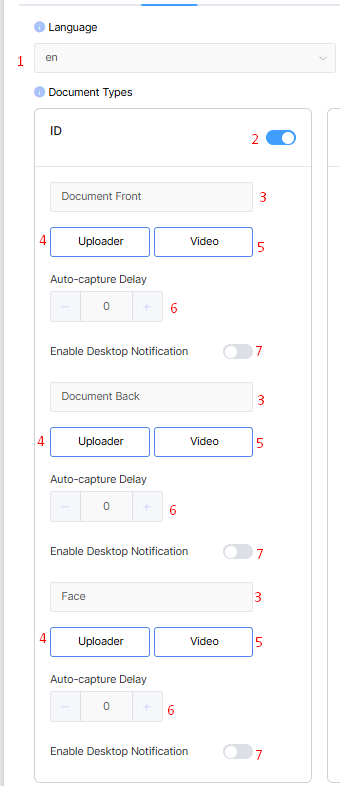
- Language - Changes text to English or Spanish.
Default : en - Document Toggles (ID, Passport, Passport Card, Green Card, International ID) - This enables the document type chosen to be used in the system. Disabling document(s) will prevent end users from submitting them.
Default : Enabled - Document Step Text - Changes the step name text for the end user.
Default : Enabled - Capture Method "Uploader" - Enables file upload from the end user's device.
Default : Enabled - Capture Method "Video" - Enables live video capture from the end user's device.
Default : Enabled - Auto-capture Delay - Value to allow a delay for auto-capture when the camera opens on the end device.
Default : Disabled - Enable Desktop Notification - Enables the appearance of a text box for desktops to prompt end users to scan on a mobile device for camera difficulties.
Default : Disabled
If the video and uploader are disabled on a step it will be removed from the entire configuration.
Example: Turning off video and uploader on the face step will allow the user to not be presented with the face step.
- Upload / Video (for each side of each document): Choose whether applicants can upload an existing photo, use live camera capture, or both. Passports have no back side, so there is no back-of-document step for them.
- Auto-capture Delay: How many seconds the camera waits before automatically taking the photo once the ID is lined up. 0 means as soon as possible.
- Enable Desktop Notification: Shows a prompt on the applicant's desktop browser for that step.
Further down the Options tab are a few overall behavior switches:
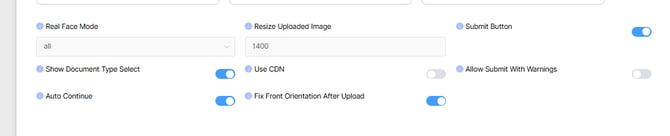
-
Real Face Mode
The "Real Face Mode" setting enables the end user to initiate a liveness check if the selfie step is being used for video capture. This checks if the user is active by asking them to turn their head left, right, up, or down.
- All - Enabled on all devices.
- Auto - Enabled on iPhones only.
- None - Disabled on all devices. End users will only need to remain still on video capture.
Default : All
Resize Uploaded Image
This setting sets the maximum amount of pixels of the larger side of manually uploaded images.
Example: 1500 does not allow the greater side of an image to be uploaded past 1500 pixels.
Default : 1400
Submit Button
This enables/disables the submit button entirely.
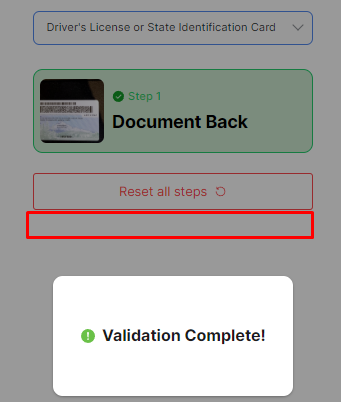
If the submit button is disabled, the submission will automatically process upon receiving all necessary images.
Enabled (user must click "Submit" to process scan)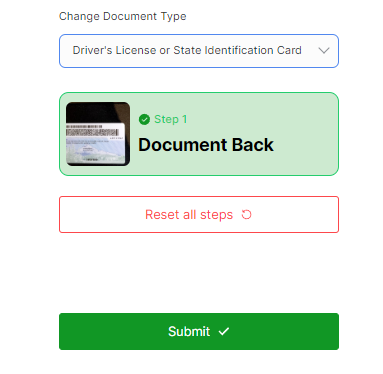
Disabled (Submission finishes upon final image being provided automatically)
Default : Enabled
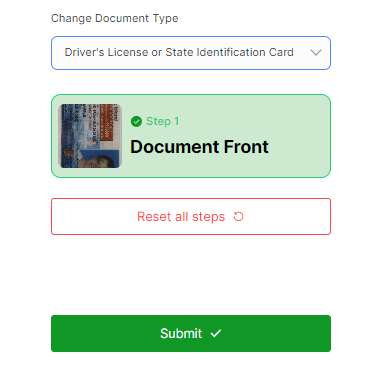
Show Document Type Select
If a DIVE Online user has multiple document types in their configuration, the end user will be prompted initially for document type selection if enabled.
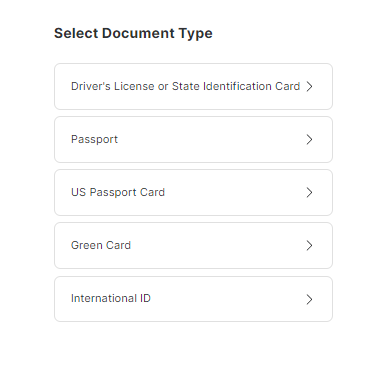
If this setting is disabled, this modal will disappear and default to the first in the list.
In this example, the window would not appear and default on the driver's license configuration.
Users can still change the document type after selecting the button shown below.
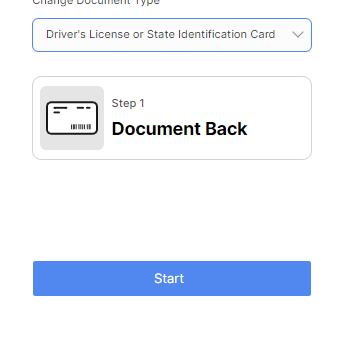
Default : Enabled
Use CDN
This loads the Web Library's neural networks from a content delivery network instead of the DIVE Online user's web server if enabled.
It is recommended to leave this setting disabled if the user is unfamiliar with this.
Default: Disabled
Auto Continue
Auto continue allows the workflow to automatically pass to the next step upon providing an image.
If disabled, the user must press the "Continue" button at the bottom of the component to proceed to the next step(s). When enabled, this will be done for them.
Default : Enabled
Allow Submit with Warnings
If enabled, this allows images that give a warning in quality to be submitted. When this is disabled the end user must submit a better image. The document in the image has been hidden for this article.
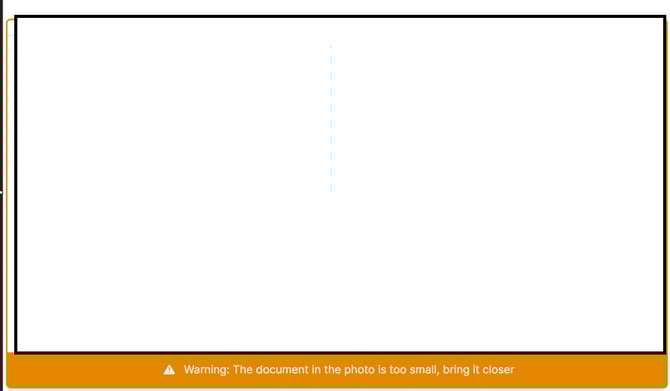
Default : Disabled
Fix Front Orientation After Upload
This flag if enabled will make the system auto-correct front step images to be orientated vertically if uploaded horizontally.
Example
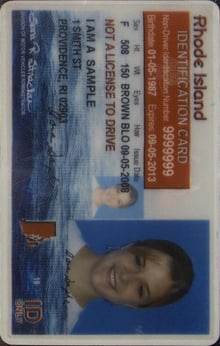
Fix Front Orientation Enabled:
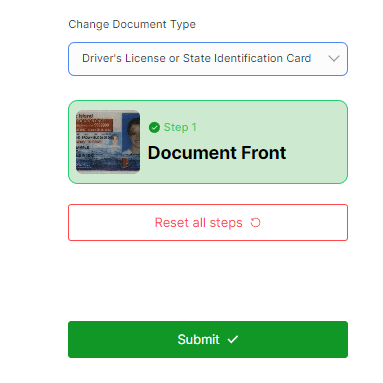
Fix Front Orientation Disabled:
Default - Enabled
e.
Click Accept Settings when you are done.
Tip
Only turn on the ID types you actually accept. Fewer choices means fewer confused applicants.
Domains and Bundles: What to Give Your Developer
Domains and Bundles are technical settings. You only need them if your developer is placing the DIVE verification experience inside your own website (a Domain) or your own mobile app (a Bundle). If you just send verification links from the Applicants page, you can skip this article.


What They Do
Each one is a safety check. It tells DIVE which websites or apps are allowed to use the verification experience. Anything not on the list is not allowed. Each entry gets its own token (a long code your developer uses to connect).
Add a Domain (Website)
- Click Applicant Mode → Domains.
- Click Add Domain.
- Enter the full web address of your site, for example
https://www.yourcompany.com. - Save. DIVE creates a token for it.
Add a Bundle (Mobile App)
- Click Applicant Mode → Bundles.
- Click Add Bundle.
- Enter your app's bundle or package identifier, for example
com.yourcompany.yourapp. Your developer can tell you what this is. - Save. DIVE creates a token for it.
Remove an Entry
Click the × next to a domain or bundle you no longer use so old tokens cannot be used.
Here's What to Give Your Developer
- From your developer to you: The exact website address (for a Domain) or app identifier (for a Bundle) they are using.
- From you to your developer: The token created for that Domain or Bundle. Share it through a password manager or other secure method, not regular email or chat.
Domains and Bundles vs. License Keys
Domains and Bundles are for Applicant Mode. License Keys are for One Shot Mode, where your developer builds the check directly into your own page. See Applicant Mode vs. One Shot Mode: Which One Are You Using? for the difference.
Questions? Contact support@idscan.net.