
If you send people verification links from the portal instead, you use Applicant Mode and can skip this guide. See Applicant Mode vs. One Shot Mode: Which One Are You Using?
In This Guide- How to Look Up Verification Requests
- How to Review Submissions That Need a Second Look
- License Keys: What to Give Your Developer
How to Look Up Verification Requests
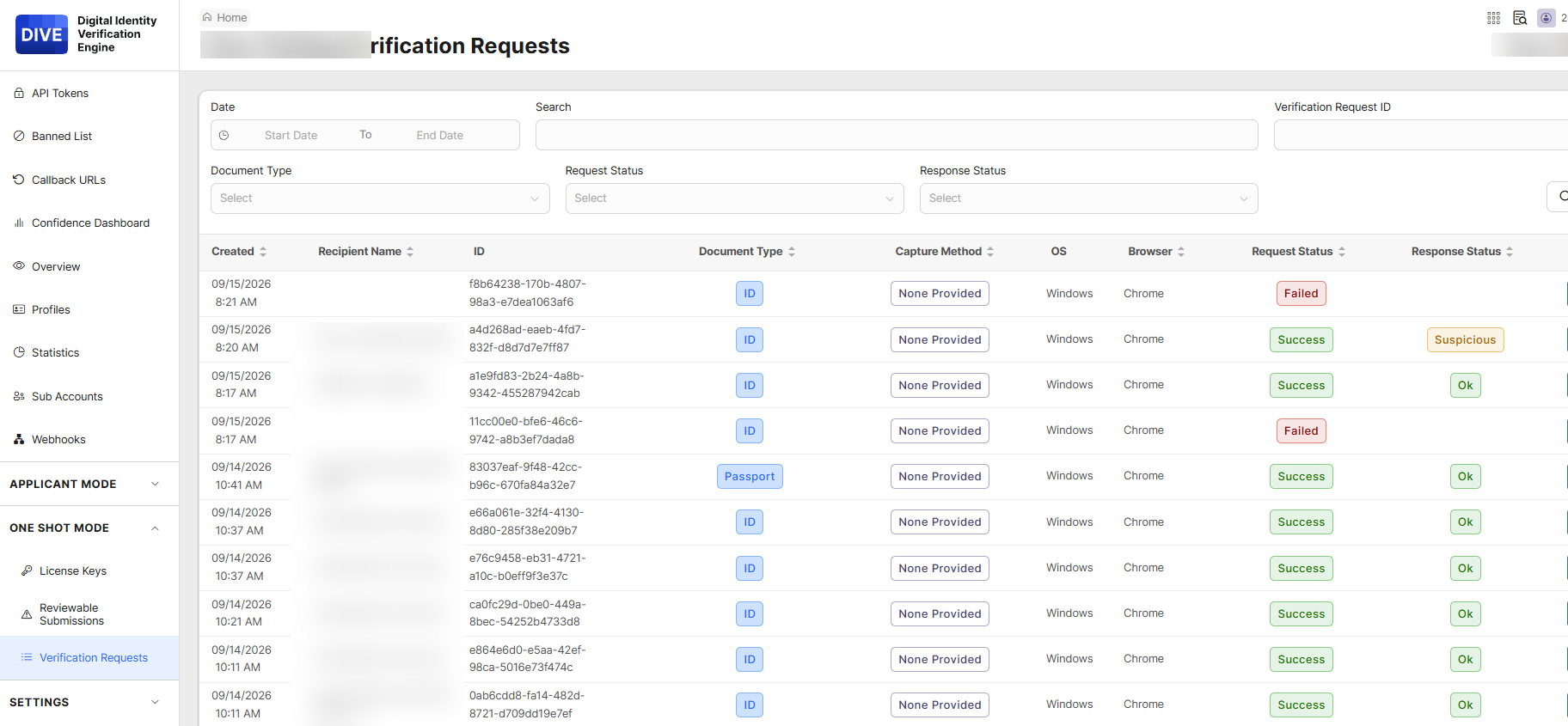
Verification Requests is a complete log of every attempt made through your website or app. It is the best place to look up what happened when a customer says their verification did not work.
Find a Specific Attempt
- Click One Shot Mode → Verification Requests.
- If you have the request's ID, type it into Verification Request ID and click Filter to jump straight to it.
- Otherwise, set a Date range and use Search to narrow it down.
Review Failures or Suspicious Results
- Set the Date range you want to review.
- Choose Failed in Request Status, or choose a value in Response Status such as Suspicious.
- Click Filter.
Understanding the Table
- Created: When the attempt happened. Synced to the account's time zone.
- Recipient Name: The person's name on the document.
- Document Type: What kind of ID they submitted.
- Capture Method: How each individual image was provided if using the IDScan.net UI. Needs to be sent in the API call if want to track this
0 - File Upload
1- Automatic Capture - OS / Browser: The device and browser the person used. This helps your developer or support team troubleshoot.
- Request Status: Final Status of the APi call itself. For example, if an HTTP 400 error, the status would be "Failed". Success does not mean if the transaction was a real ID/face, only that the API call completed.
- Response Status: A quality flag such as Ok or Suspicious.
- OK - All scores >=70%
- Low Confidence - At least one score between 1% and 69% (inclusive)
- Suspicious - At least one score showing 0%.
- Details: Opens the full record, including the submitted images and scores.
Tip
When contacting support about a specific attempt, include its ID from this page. It lets us find the exact request right away.
How to Review Submissions That Need a Second Look
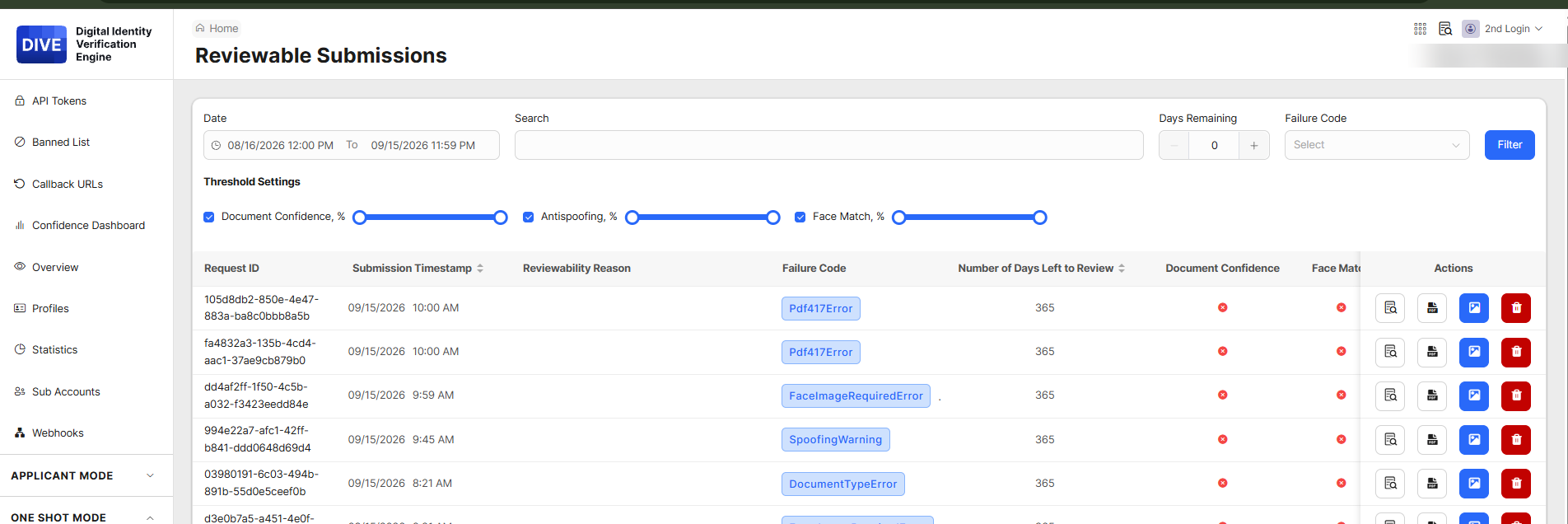
Reviewable Submissions lists attempts that need a person to look at them. That includes attempts that failed outright, for example because a required image was missing, and attempts that technically passed but scored close to your cutoff.
Work Through the List
- Click One Shot Mode → Reviewable Submissions.
- Choose how to narrow the list: set a Date range, pick a Failure Code, or use the score sliders described below.
-
Click Filter.
- For each row, use the Actions icons to view the request details, view the images, or delete the submission.
- Decide what to do about the applicant based on what you see.
The Score Sliders
Under Threshold Settings, three sliders let you focus on submissions in a certain score range: Document Confidence, Antispoofing, and Face Match. Tick a box to use that slider, or untick it to ignore that score. This is useful for finding borderline cases.
Understanding the Table
- Request ID: The attempt's ID.
- Submission Timestamp: When it was submitted.
- Reviewability Reason: Why it needs a look, such as "Front image required" or that it fell within a confidence threshold.
- Number of Days Left to Review: How long before the record ages out of the review window.
Tip
Sort or filter by Number of Days Left to Review so nothing expires before someone has looked at it.
License Keys: What to Give Your Developer
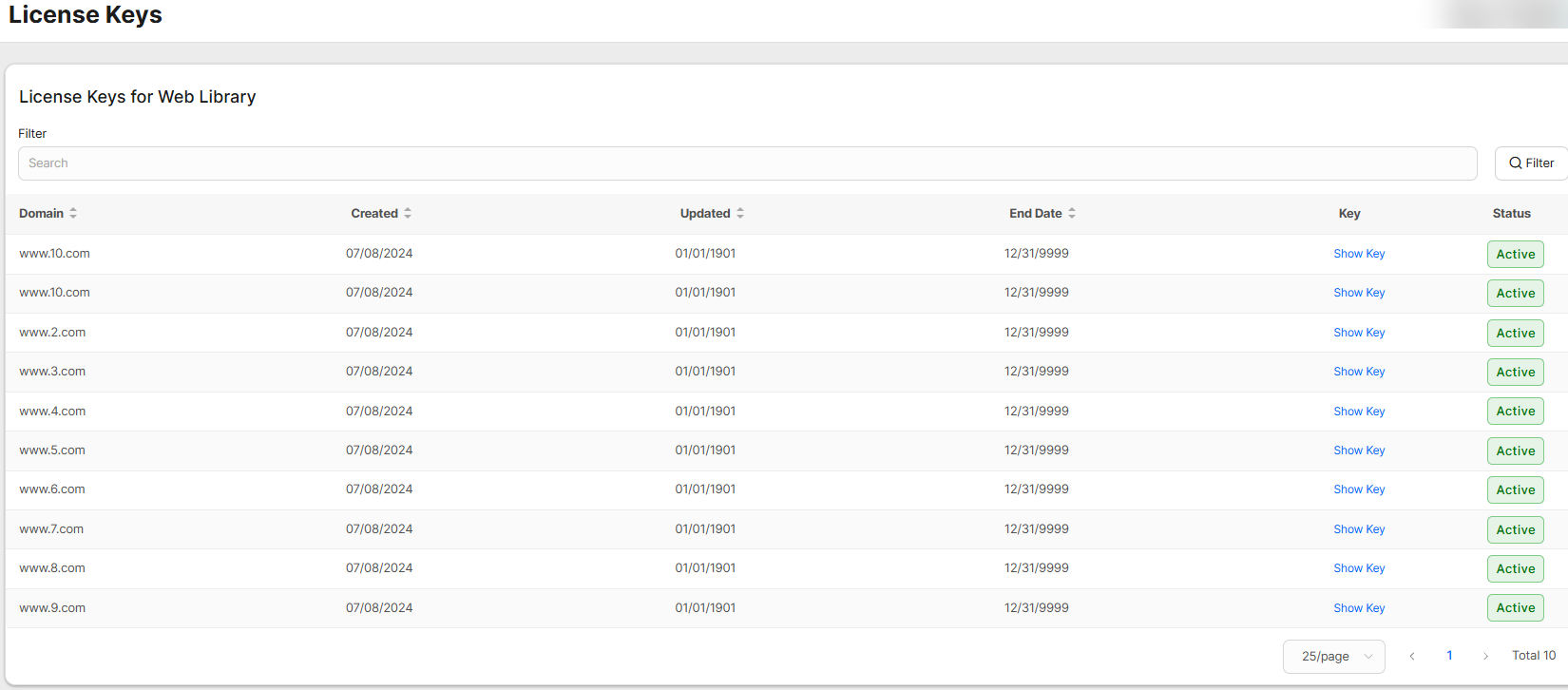
A License Key is what allows your website and/or native app to use One Shot Mode. Your developer will ask you for it when they set up the integration.
Find Your License Key
- Click One Shot Mode → License Keys.
- Find the row for your website's address in the Domain column. Use Search if the list is long.
- Click Show Key to reveal the key.
- Copy it.
Check That It Is Still Good
Look at the Status column (it should say Active) and the End Date. A date of 12/31/9999 means the key does not expire. If a key is about to expire on a website that is live, contact support before it does.
Here's What to Give Your Developer
- The License Key for the specific website address they are working on.
- The key's End Date, so they know if it needs renewal.
License Keys vs. Domains and Bundles
License Keys are for One Shot Mode. Domains and Bundles are for Applicant Mode. They are not interchangeable. See Applicant Mode vs. One Shot Mode: Which One Are You Using?
Questions? Contact support@idscan.net.