
Before You Change Anything
Almost every Settings page starts with a Profile dropdown. Your changes apply only to the Profile you have selected, so check it first. Most businesses have one Profile called default. See What Profiles Are and How to Use Them for more.
Always click Save when you are done. Changes are not applied until you do.
In This Guide
- Choosing Which Checks Run on a Verification (General)
- Attempt Limits and How Long DIVE Keeps Data (Data Retention & Submission Limits)
- Understanding Confidence Thresholds
- Customizing the Messages Applicants Receive (Notification)
- Setting Up the Consent Form
- Setting Up Banned List Alerts
- Adjusting Suspicious Activity Monitoring Settings (SAM)
Choosing Which Checks Run on a Verification (General)
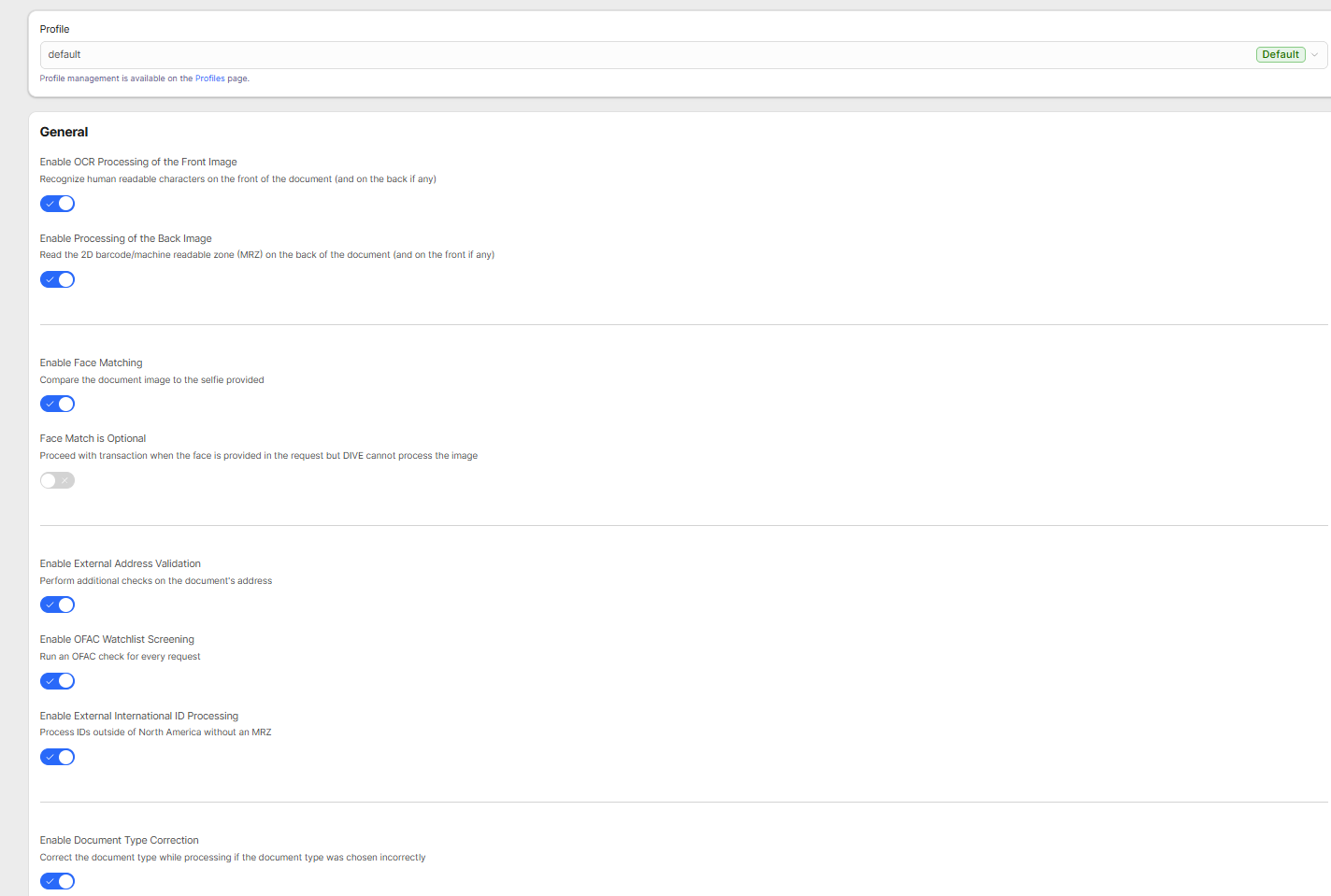
The General page decides which checks DIVE performs every time someone verifies. Think of it as a checklist: switch on the checks that matter to your business.
Change Your Settings
- Click Settings → General.
- Choose a Profile at the top.
- Switch the options you want on or off (see below).
- Click Save.
What Each Option Does
- Enable OCR Processing of the Front Image: Reads the human readable printed text on the front of the ID.
- Enable Processing of the Back Image: Reads the barcode or machine-readable zone on the back of the ID.
- Enable Face Matching: Compares the photo on the ID to the applicant's selfie.
- Face Match is Optional: If a face photo is provided but cannot be processed, the verification continues instead of failing with an error.
- Enable External Address Validation: Extra checks on the address printed on the ID. USA Only.
- Enable OFAC Watchlist Screening: Checks against the OFAC sanctions list.
- Enable External International ID Processing: Allows IDs from outside North America that do not have a machine-readable zone.
- Enable Document Type Correction: Attempts to automatically fix the ID type server side if the applicant picked the wrong one.
- Enable Sample Document Processing: Allows special sample or test documents provided by IDScan.net to be processed on the account.
- Enable Face Trace: Looks through IDs you have already scanned for the same face under a different identity, to help catch fraud.
- Require Both Sides of a Document to be Read: If an ID has two sides, both must be provided and readable or the verification fails.
- If Document Confidence is Below 30%, Do Not Run 3rd Party Checks: Skips costly outside checks when the ID itself looks unreliable.
Outside Checks When Both Sides Are Readable
Choose one option for which outside checks run when both sides of the ID can be read: none, IdentiFraud only, DMV only, DMV when available and otherwise IdentiFraud, or both DMV and IdentiFraud. Some of these have an additional fee, so see Integration Settings and Optional Paid Checks and talk to your account manager if you are unsure.
Attempt Limits and How Long DIVE Keeps Data (Data Retention & Submission Limits)
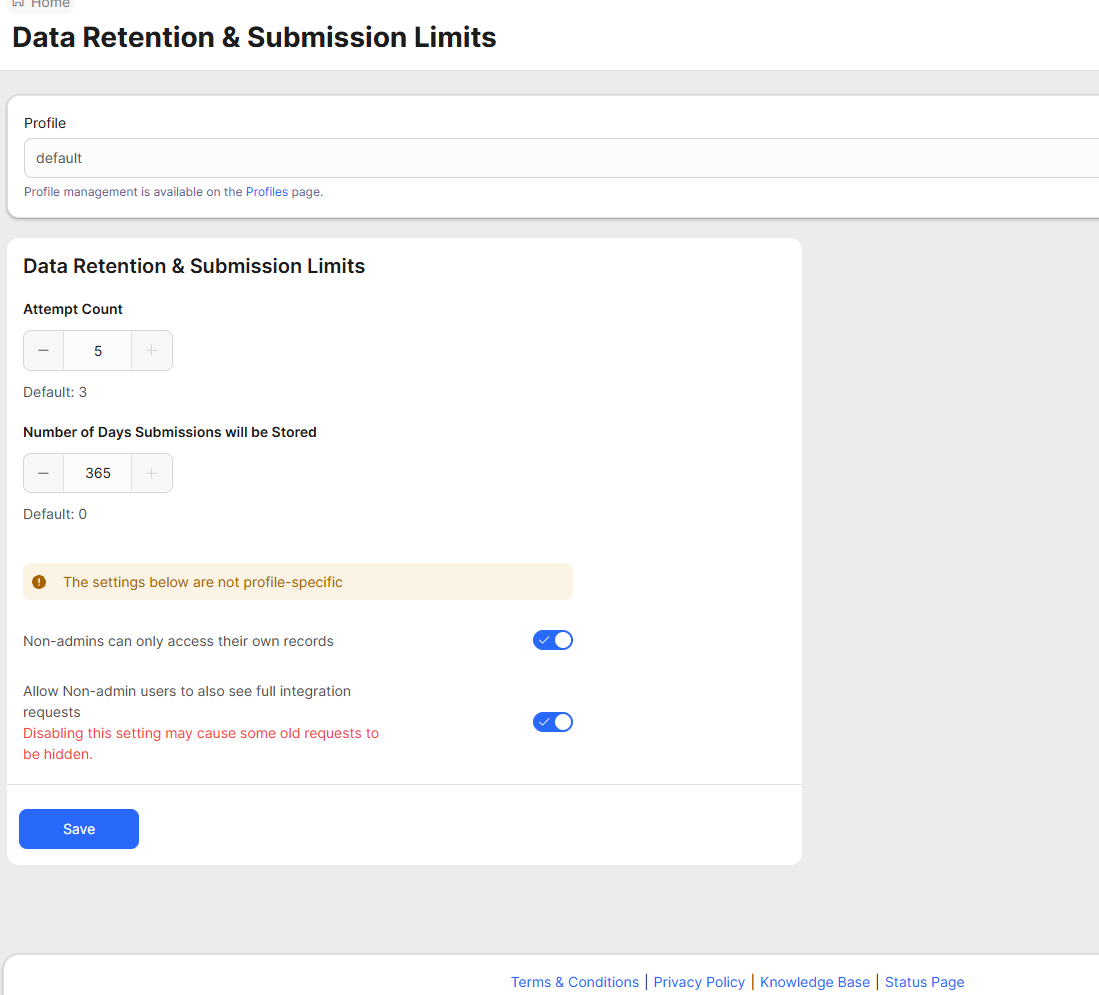
This page controls how many tries an applicant gets, how many days DIVE keeps submissions, and who on your team can see which records.
Change Your Settings
- Click Settings → Data Retention & Submission Limits.
- Choose a Profile.
- Set Attempt Count: how many times an applicant may try before being blocked. The default value is shown beneath the field.
- Set Number of Days Submissions Will Be Stored: how long DIVE keeps submission data before removing it. Set this to match your company's data and privacy policy.
- Click Save.
Team Access Settings (Whole Account)
A banner on this page says the settings below it are not profile-specific. They apply to your entire account.
- Non-admins can only access their own records: When on, team members who are not admins only see requests they created themselves in applicant mode.
- Allow Non-admin users to also see full integration requests: When on, non-admins can also see the full details of integration requests. The portal warns that turning this off may hide some older requests from non-admins.
Tip
If you are not sure how long to keep data, ask your compliance or legal team before changing it.
Understanding Confidence Thresholds
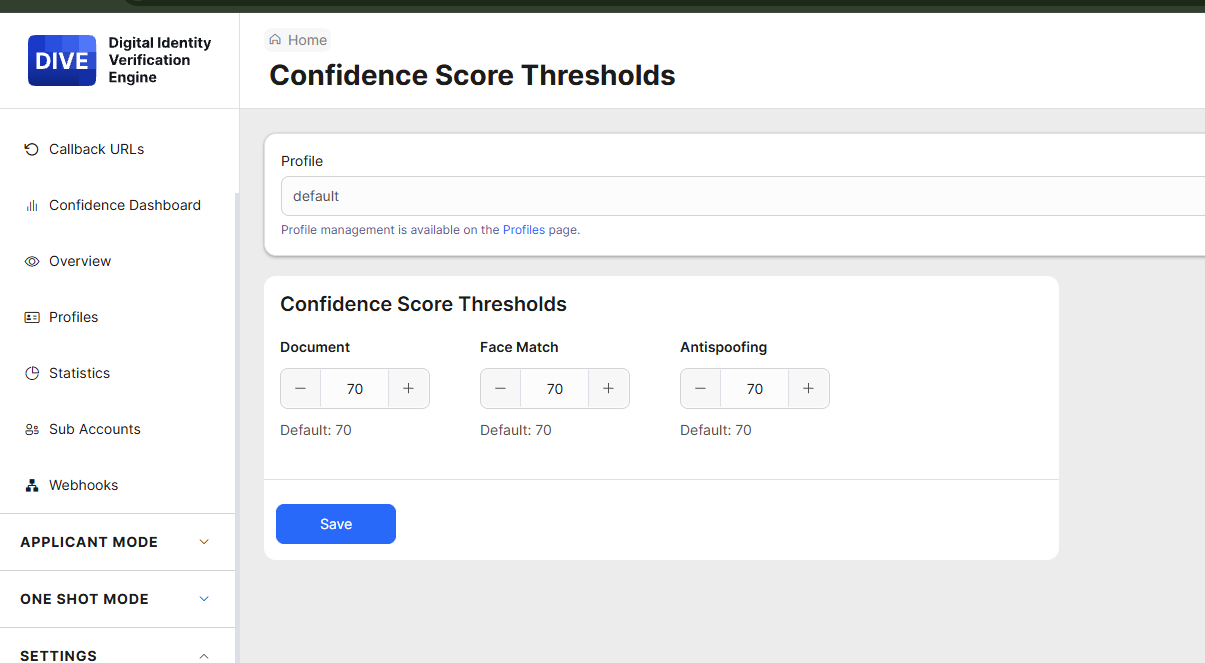
Confidence thresholds are the pass/fail cutoffs DIVE uses. A verification must reach at least the cutoff on each score to pass. Higher cutoffs are stricter. Lower cutoffs are more forgiving.
The Three Cutoffs
- Document: How confident DIVE must be in the ID itself. Default 70.
- Face Match: How closely the selfie must match the ID photo. Default 70.
- Anti-spoofing: How confident DIVE must be that the face was captured genuinely and not faked. Default 70.
Change a Cutoff
- Click Confidence Dashboard first and look at how your recent results are spread. Try different cutoffs there to see what would change. Nothing is saved on that page.
- Click Settings → Confidence Score Thresholds.
- Choose a Profile.
- Enter your new values for Document, Face Match, and Anti-spoofing.
- Click Save. The change applies to future verifications on that Profile.
- Check Overview and Statistics afterward to see how your pass rate changed.
Tip
Change one cutoff at a time so you can tell what made the difference. See Understanding the Confidence Dashboard for how to explore your results.
Customizing the Messages Applicants Receive (Notification)
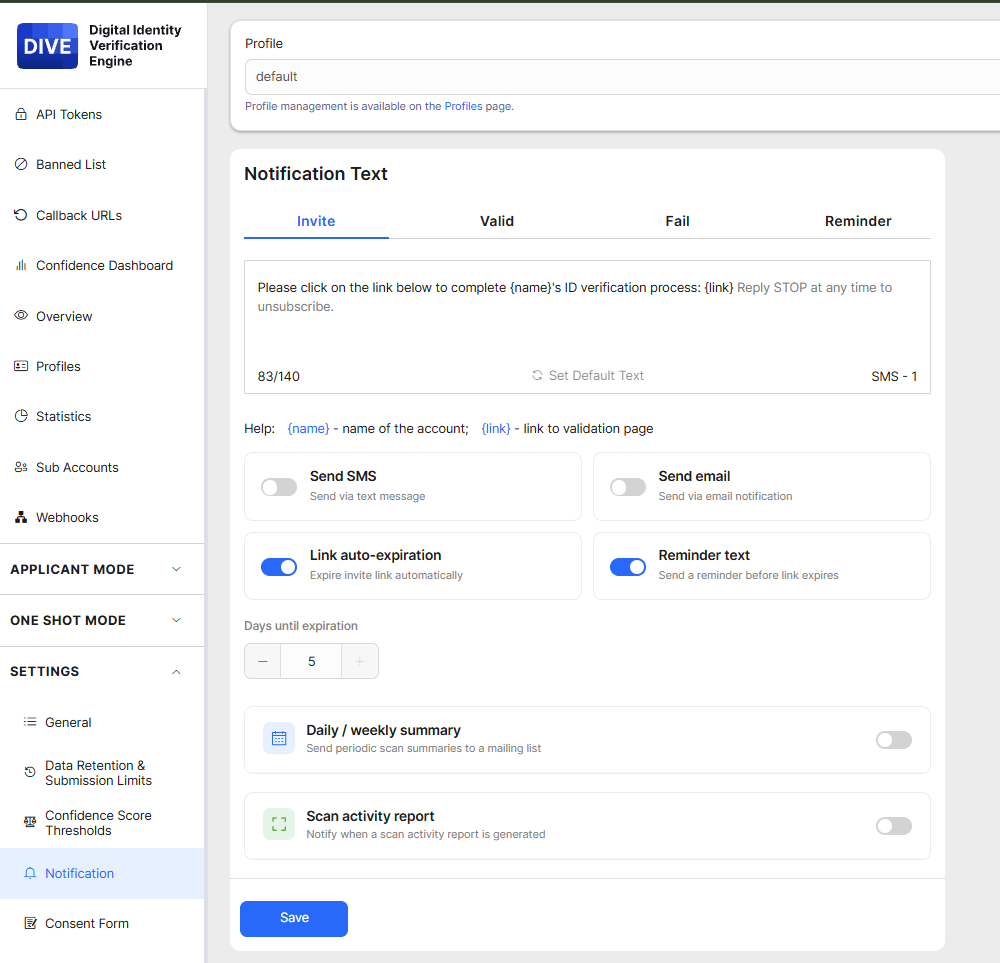
The Notification page controls the text messages and emails your applicants receive, how long their link stays valid, and optional summary reports for your own team.
Edit the Messages
- Click Settings → Notification.
- Choose a Profile.
- In Notification Text, click one of four tabs: Invite (the first message), Valid (when they pass), Fail (when they do not), or Reminder (a nudge before their link expires).
- Edit the message in the text box. A counter shows how many characters you have used, for example 83/140, and how many text messages it will take.
- To go back to the standard wording for that tab, click Set Default Text.
- Click Save.
These settings are only applicable to Applicant mode.
Shortcuts You Can Use in a Message
{name}inserts the account name into your message.{link}inserts the link to the verification page. Keep it in your Invite message, or the applicant has no way to open the verification.
Choose How Messages Are Delivered
- Send SMS: Send by text message.
- Send email: Send by email.
- Link auto-expiration: Make the link stop working after a number of days. Choose the number in Days until expiration.
- Reminder text: Send the Reminder message before the link expires.
Reports for Your Team
- Daily / weekly summary: Sends scan summaries to a mailing list you set up.
- Scan activity report: Notifies your team when a scan activity report has been generated.
Tip: Make Sure Applicants Know Who Is Asking
People are cautious about links asking for their ID. In your Invite message, say clearly which business is asking, so the applicant recognizes it. Keep the message short, since text messages are limited in length.
Setting Up the Consent Form
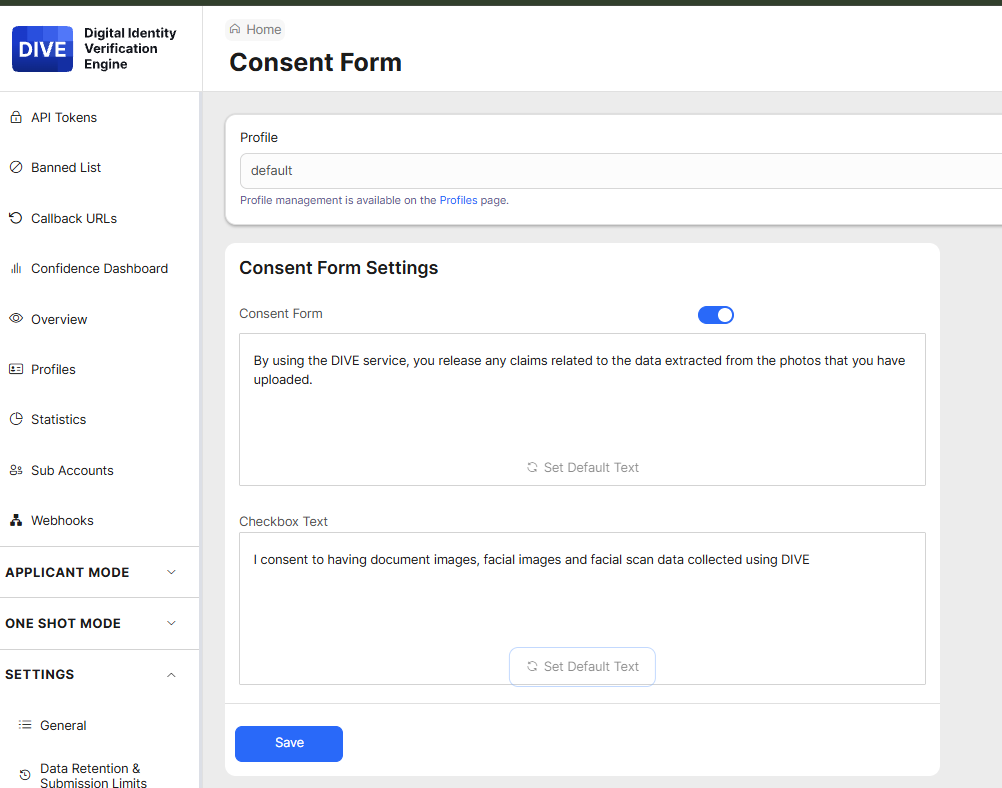
The Consent Form is the agreement applicants see before they submit their ID and selfie. It explains how their information will be used and asks them to tick a box to agree.
Edit the Consent Form
- Click Settings → Consent Form.
- Choose a Profile.
- Keep the Consent Form switch on unless your legal or compliance team has told you it is not needed for your use.
- Edit the Consent Form text to match your privacy policy and any rules that apply to you.
- Edit the Checkbox Text, which is the short sentence next to the box the applicant must tick.
- To return either box to the standard wording, click Set Default Text.
- Click Save.
This wording has legal implications. Have your legal team review any custom text before you save it.
Setting Up Banned List Alerts
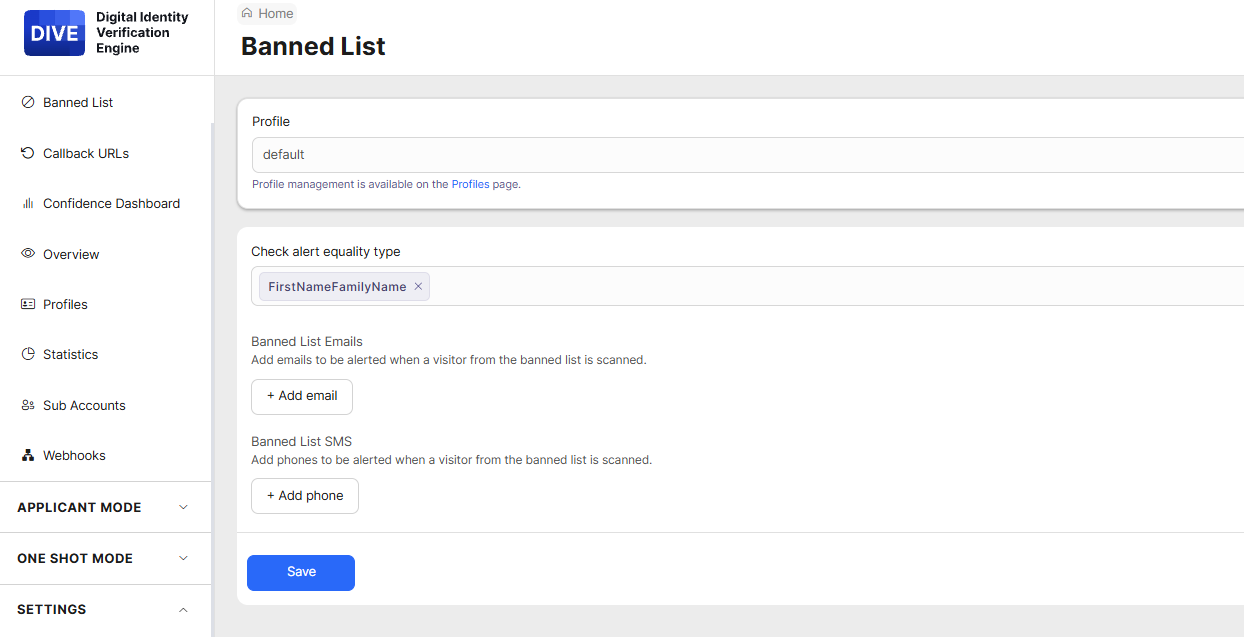
This page controls how DIVE decides someone matches your Banned List, and who gets alerted. The list of people itself is managed on the Banned List page. See How to Use the Banned List.
Set It Up
- Click Settings → Banned List.
- Choose a Profile.
- In Check alert equality type, choose which details must match to count as a hit. For example, FirstNameFamilyName means first name and last name must both match. You can add or remove criteria.
- Under Banned List Emails, click + Add email for each person who should be emailed when a match is found.
- Under Banned List SMS, click + Add phone for each number that should receive a text.
- Click Save.
Tip
Use a shared mailbox or team number rather than one person's, so alerts are not missed when someone is out of the office.
Adjusting Suspicious Activity Monitoring Settings (SAM)
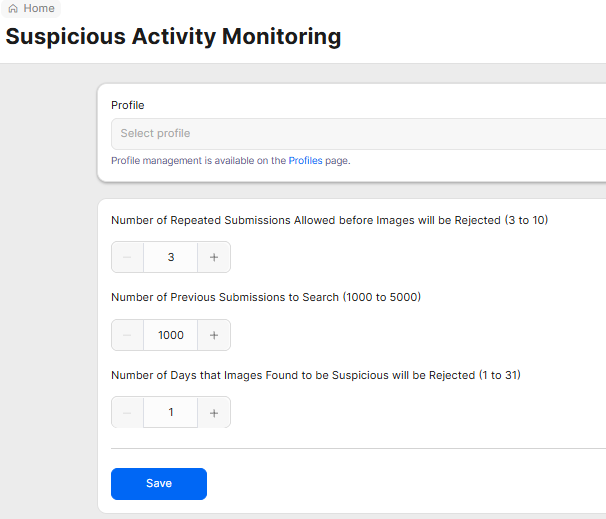
These settings control how DIVE spots and blocks repeated suspicious submissions. The flagged activity itself shows up on the SAM page. See How Suspicious Activity Monitoring (SAM) Works.
Change Your Settings
- Click Settings → SAM.
- Choose a Profile.
- Set Number of Repeated Submissions Allowed before Images will be Rejected (3 to 10, default 3). This is how many times the same or a matching image can be submitted before DIVE starts rejecting it.
- Set Number of Previous Submissions to Search (1000 to 5000, default 1000). This is how far back DIVE looks for a match. A bigger number looks further back.
- Set Number of Days that Images Found to be Suspicious will be Rejected (1 to 31, default 1). This is how many days a flagged source is blocked before it can try again.
- Click Save.
Tip
Start with the defaults. If you are seeing genuine customers blocked, raise the allowed repeats. If you are seeing too much suspicious activity, lower them or lengthen the number of days.
Questions about any setting? Contact support@idscan.net.