
Kiosk mode requires VeriScan for Windows v3.29.3 and an Enterprise or higher subscription plan. Contact your account representative to get this feature enabled for your account.
Setup
In the VeriScan Cloud portal, navigate to Settings > Local Settings > Kiosk.
Changes you make will appear in the Live Preview panel on the right of the page.
Screen Orientation
You can choose to display your kiosk in either Portrait or Landscape.
Verification
By default, face match is recommended for each scan (webcam required), but you can choose to not perform face match or only perform it on IDs that pass.
Liveness Checks
This check ensures the face in front of the camera is a real face and not a print-out or picture on a mobile device/screen.
Branding
You can upload your own logo and choose colors that match your company branding.
To help prevent screen burn-in, it is recommended you choose an alternate color scheme for the Welcome 2 screen.
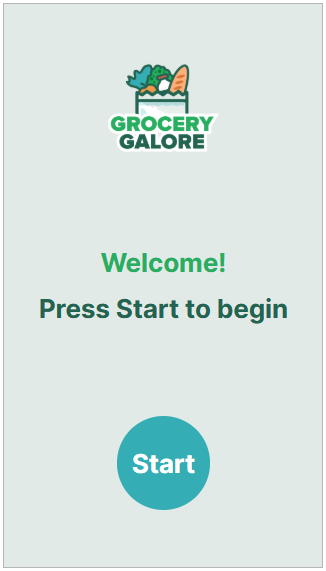
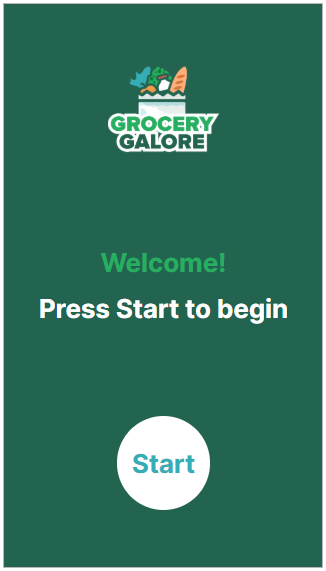
Text Customization
You can choose what text will display on a few different screens, including:
-
Welcome Screen
-
Consent Screen (optional)
-
Outcome Text
-
Passed
-
Failed
-
Flagged
-
-
Warning Message
-
Errors
Outcome Text
Kiosk mode allows you to customize the text that will appear to the end user after VeriScan has completed its checks. This helps provide the end-user with some instructions on next steps depending on the outcome.
After you've completed customizing your kiosk, select Save Changes at the bottom.
Assigning kiosk mode to your devices
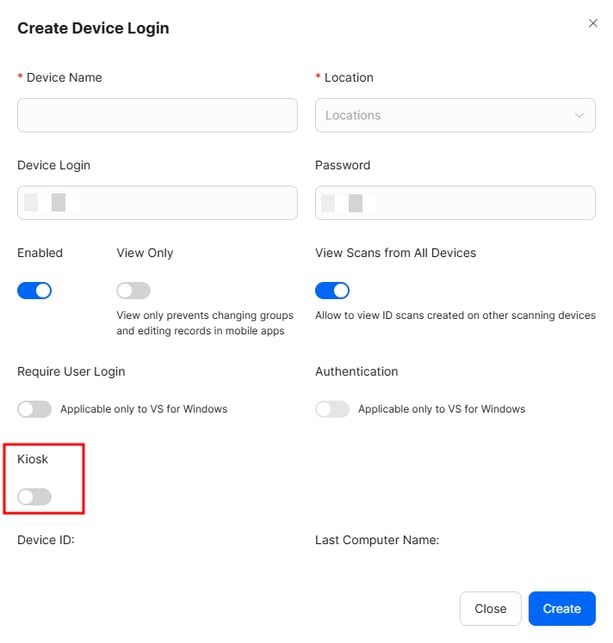
To determine which of your devices is able to run kiosk mode, locate your device(s) in Access Management > Devices, and toggle on Kiosk for those devices.
If you need to have different kiosk setups across different devices, kiosk mode pairs well with Settings Profiles.
How can I comply with multiple jurisdictional regulations in the same account?
Using kiosk mode in the VeriScan app
In the VeriScan app, use the refresh settings button at the top of the window. A new kiosk button should appear on the left.
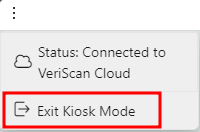
To exit kiosk mode, tap the very top of the screen to reveal the 3 dot icon, then select Exit Kiosk Mode.
IDScan.net does not provide kiosk hardware, but can put you in touch with one of our kiosk partners who do.
Contact Us