
System Updates (OS and Firmware)
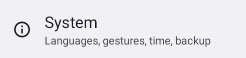
Go to Settings > System > Software Update Center
 |
 |
 |
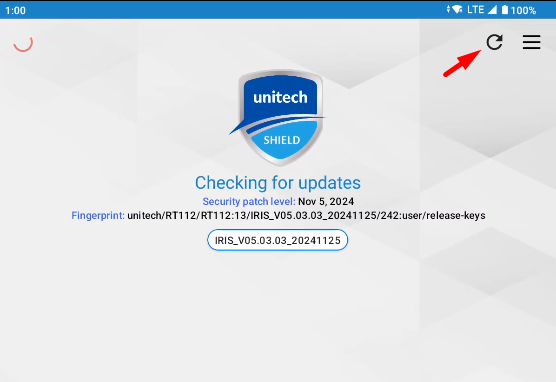
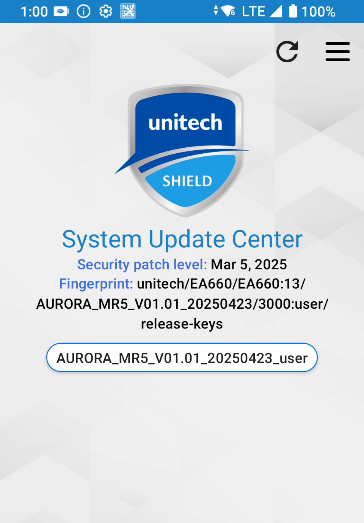
In the System Update Center, tap the Refresh icon in the top right of the screen.
RT112 Tablet |
EA660 Handheld |
 |
 |
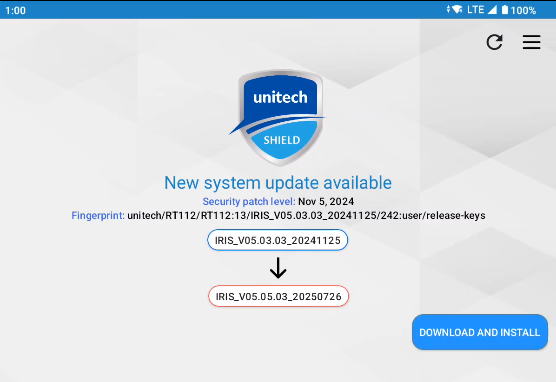
If a new update is available, it will appear with a "New system update available" alert and a version number.
RT112 Tablet |
EA660 Handheld |
 |
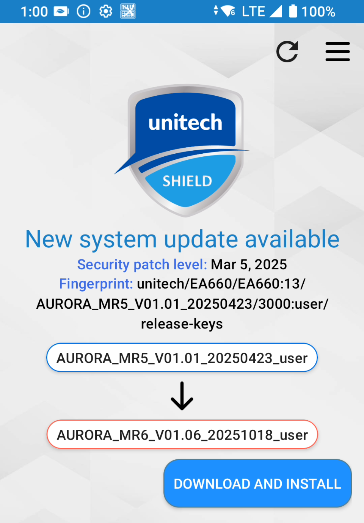 |
Make sure your device is at least 80% charged, plugged in, and connected to the internet.
Tap the blue Download and Install button to begin the update.
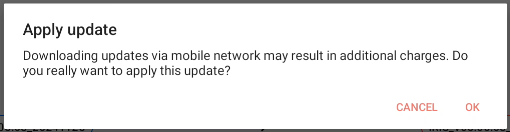
Click OK to on the confirmation popup.
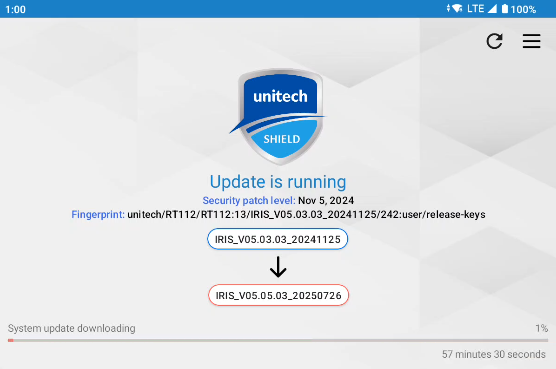
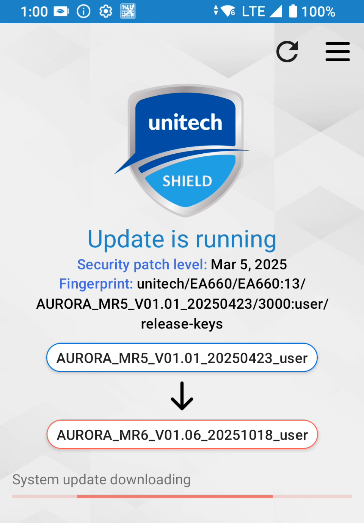
While the update is downloading, you'll see a progress bar.
RT112 Tablet |
EA660 Handheld |
 |
 |
Once complete, your device should reboot.
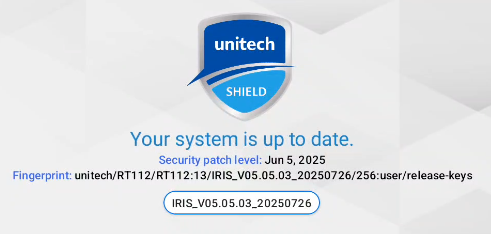
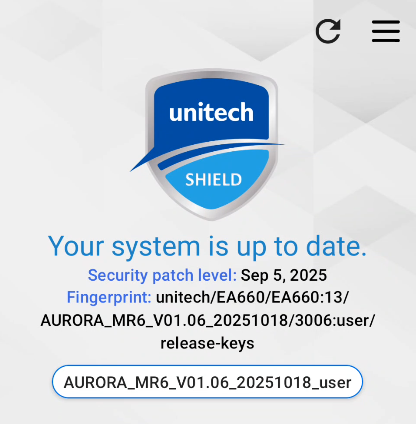
Checking the Software Update Center again will show a "Your system is up to date." message.
RT112 Tablet |
EA660 Handheld |
 |
 |
App Updates (Unitech System Apps)
Go to the Software Update app.
Tap the Refresh icon in the top right of the screen.
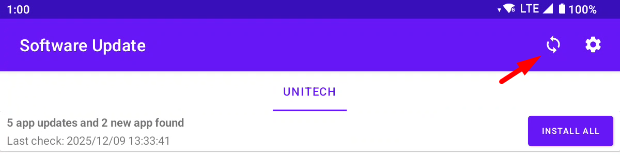
If new Unitech app updates are found, they will appear in the list with an Update button.
Tap the Update button next to each app you use to download and install the latest version.
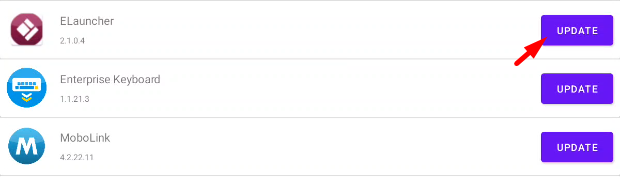
A progress bar will appear while the app is installing.

The app will appear with no update in the list when completed.

Repeat for each app you use.
Note: It is not required to install all the apps in the list if you're not already using them.
App Updates (Google Play Store Apps)
Please refer to these guides from Google on how to use the Google Play Store to manage your devices and keep your Android apps up to date.